Uninstalling#
Uninstalling by the wizard#
1. To uninstall HIP-VS, select Extensions -> Manage Extensions in Visual Studio 2019/2022 or Tools -> Extensions and Updates... in Visual Studio 2017 main menu.
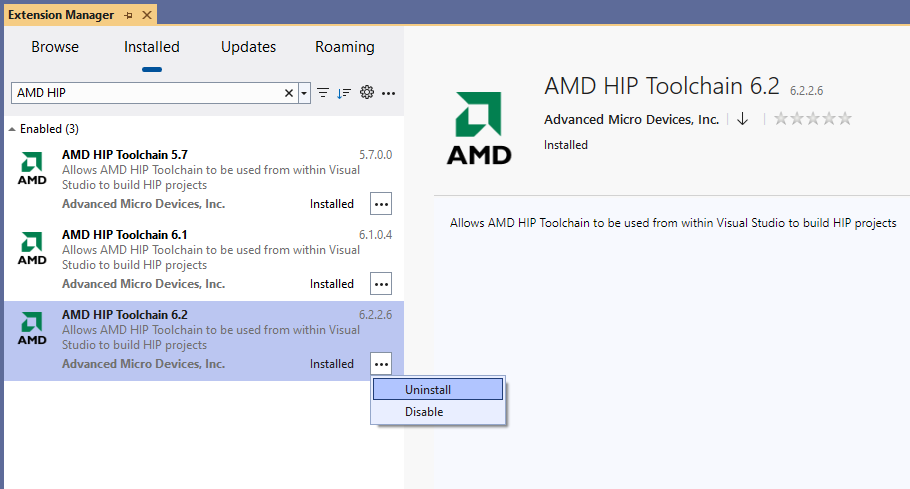
2. In the appeared dialog, find AMD HIP Toolchain in the Installed section and push the Uninstall button.
The below screenshots are from Visual Studio 2022.
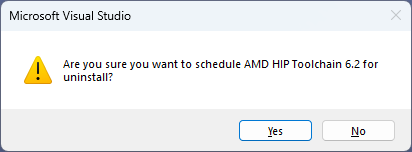
3. Then push the Yes button (Visual Studio 2017 or 2019):
4. Then push the Close button (Visual Studio 2017 or 2019):
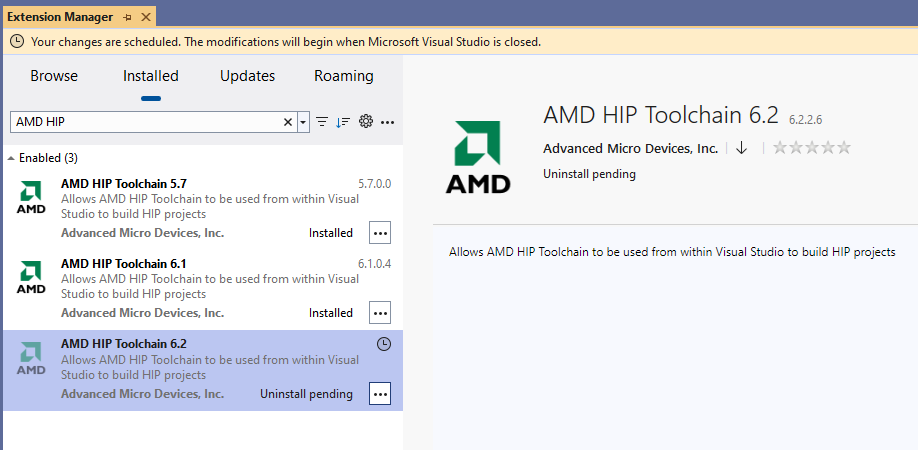
5. Close Visual Studio and follow the instructions of the VSIX installer.
Uninstalling in shell#
Before starting an uninstallation process, all instances of Visual Studio should be closed, and all msbuild or devenv building or testing processes should be stopped.
Uninstalling in shell for VS 2017#
"c:\Program Files (x86)\Microsoft Visual Studio\2017\Community\Common7\IDE\VSIXInstaller.exe" /a /q /u:AMD_HIP_15.d069512a-eb13-4d24-9902-9505ddd849f7
"c:\Program Files (x86)\Microsoft Visual Studio\2017\Professional\Common7\IDE\VSIXInstaller.exe" /a /q /u:AMD_HIP_15.d069512a-eb13-4d24-9902-9505ddd849f7
Uninstalling in shell for VS 2019#
"c:\Program Files (x86)\Microsoft Visual Studio\2019\Community\Common7\IDE\VSIXInstaller.exe" /a /q /u:AMD_HIP_16.ce33778a-a9b8-4a32-bff2-88a74e77ecc0
"c:\Program Files (x86)\Microsoft Visual Studio\2019\Professional\Common7\IDE\VSIXInstaller.exe" /a /q /u:AMD_HIP_16.ce33778a-a9b8-4a32-bff2-88a74e77ecc0
Uninstalling in shell for VS 2022#
"c:\Program Files\Microsoft Visual Studio\2022\Community\Common7\IDE\VSIXInstaller.exe" /a /q /u:AMD_HIP_17.ad27697a-be9c-40f3-8275-5406559bce2c
"c:\Program Files\Microsoft Visual Studio\2022\Professional\Common7\IDE\VSIXInstaller.exe" /a /q /u:AMD_HIP_17.ad27697a-be9c-40f3-8275-5406559bce2c
Uninstalling in shell the archived versions#
Uninstalling the previous versions of HIP-VS
The uninstallation process lasts from a few seconds to a few minutes, depending on the system’s hardware and environment.
For a successful uninstallation, the return code of VSIXInstaller.exe should be 0.
The return code might be checked by the %errorlevel% variable directly after one of the above commands for VSIXInstaller.exe launching.
The main reason vsix isn’t uninstalled (return code 0 or not) is that the previous process is blocking the uninstall.
It might be msbuild.exe, devenv.exe, and some dependent processes. They should be stopped; restarting the system is another option.